


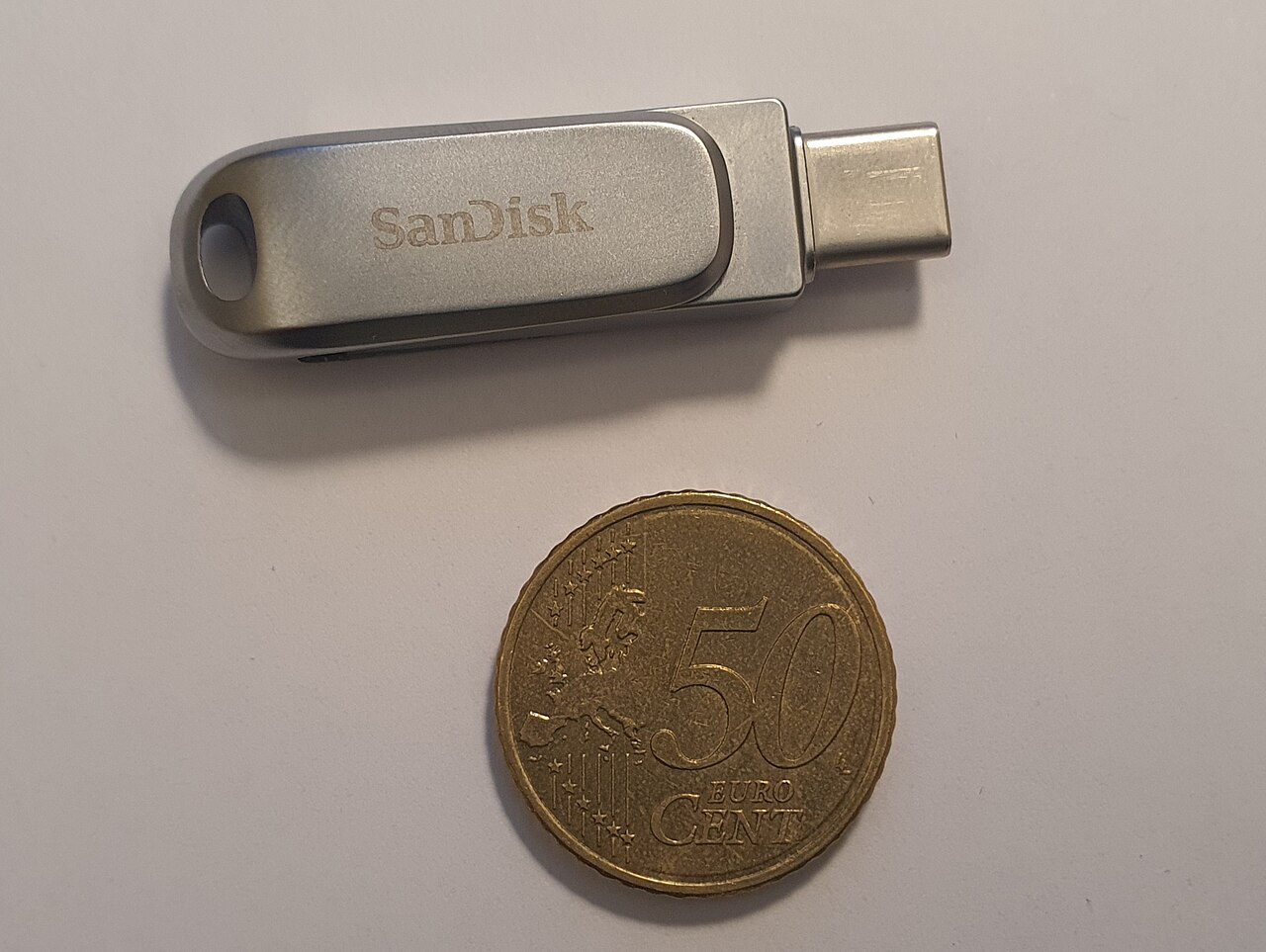
Installing Windows from a CD or DVD is slow and often impossible on modern laptops without an optical drive. WinToFlash is a Windows utility that helps users create a bootable USB drive from a Windows installation disc or image, so Windows can be installed quickly from USB.
What Is WinToFlash?
WinToFlash is a tool that transfers Windows setup files to a USB flash drive and makes that drive bootable. Once the USB drive is prepared, the computer can boot from it and start Windows installation, just as it would from a DVD.
This is useful for netbooks, ultrabooks, and other PCs without a DVD drive, as well as for anyone who wants a faster, more reliable installation medium than an optical disc.
Why Bootable USB Drives Are Useful
USB drives are faster than DVDs, easier to carry, and less likely to get scratched. A bootable USB can also be reused: after one installation, the drive can be reformatted and used again, or kept as a recovery tool.
For technicians and home users alike, a bootable USB is a practical way to install, repair, or reinstall Windows on several computers without carrying discs.
Key Features for PC Users
- Bootable USB creation: Turn a Windows disc or ISO into a bootable USB drive.
- Windows version support: Works with common Windows installation sources for setup and repair.
- Simple wizard: Step-by-step options that guide beginners through the process.
- Multiboot options: Prepare drives that can hold more than one boot option, where supported.
- Fast transfer: Copy setup files to USB faster than burning a disc.
How to Create a Bootable USB Safely
- Back up the USB drive first, because the process will erase it.
- Insert a USB drive with enough free space for the Windows setup files.
- Select the Windows installation source and the correct USB drive, and double-check the drive letter.
- Start the transfer and wait for it to finish without removing the drive.
- Restart the PC, enter boot settings if needed, and boot from the USB drive to start installation.
Choosing the wrong drive is the main risk. Always confirm the drive size and letter before starting, especially when other drives are connected.
Practical Tips
Use a reliable USB drive, preferably USB 3.0 or newer for faster installation, and keep the Windows product key ready before starting. After installation, the USB drive can be kept as a recovery tool or reformatted for normal use.
If a PC does not boot from USB, check the boot order in BIOS or UEFI settings, and make sure Secure Boot settings allow the USB drive if required.
Final Thoughts
WinToFlash makes a common but technical task simple: creating a bootable Windows USB drive without manual command-line steps. For users installing or repairing Windows on a PC without a DVD drive, it is a practical, time-saving tool.
To learn more about creating bootable USB drives, visit wintoflash.org.
